
Use Parts Condition to record the condition of a physical part on a saved product or work-order line item. This helps your shop clearly identify non-new parts on customer estimates and invoices.
Available Parts Conditions
- New
- Used
- Rebuilt
- Reconditioned
- Remanufactured
Choose the classification that accurately describes the part and meets the disclosure rules that apply to your shop.
Set a Condition on a Saved Product
- Open Products in the left menu.
- Select New Product, or select Edit on an existing product.
- Confirm that Product is selected as the Product Type.
- Select the appropriate value from Parts Condition.
- Select Save.
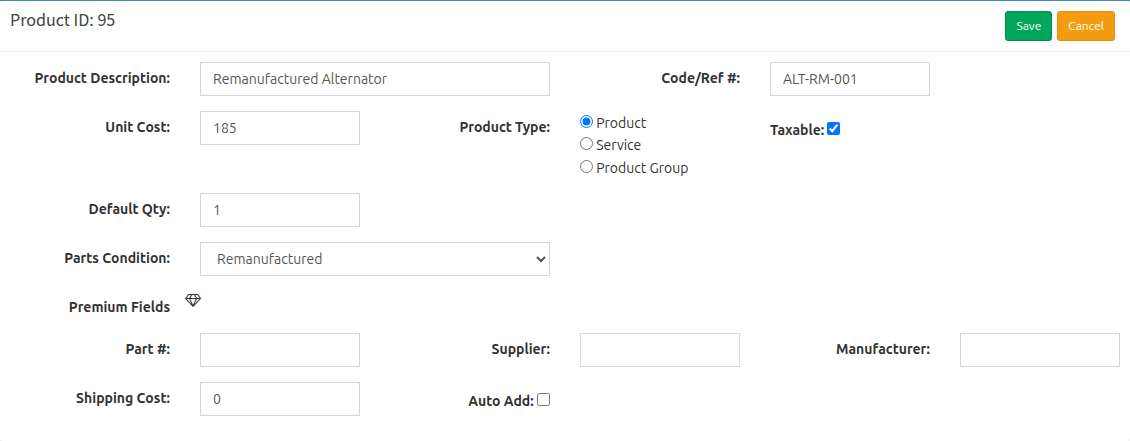
When you add that saved product to a work order, its condition is copied to the new line item. Existing work-order line items keep their own saved condition if you later change the saved product.
Set a Condition on a Work-Order Line Item
- Open the work order.
- Select Add Line Item, or select Edit on an existing line item.
- Confirm that Product is selected as the Product Type.
- Select the correct Parts Condition.
- Select Save.
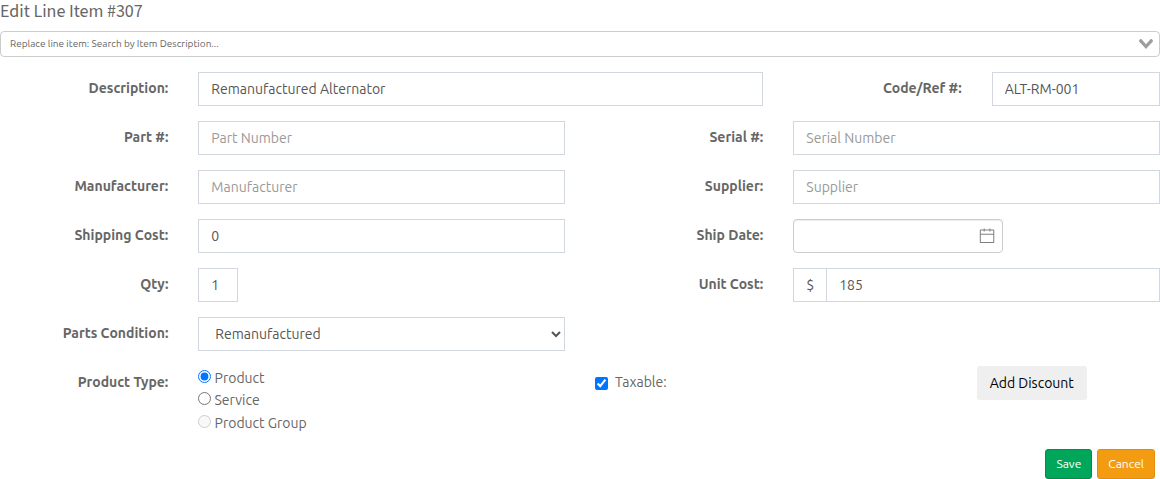
How Parts Condition Appears on Printed Documents
For a physical Product line item, HibbittsAutoPro adds a non-new condition after the description in parentheses. For example, a remanufactured part appears as (remanufactured). A part marked New prints normally without a condition suffix.
Service line items do not add a parts-condition suffix to printed documents. Review the Product Type and Parts Condition for every physical part before printing or sending an estimate or invoice.
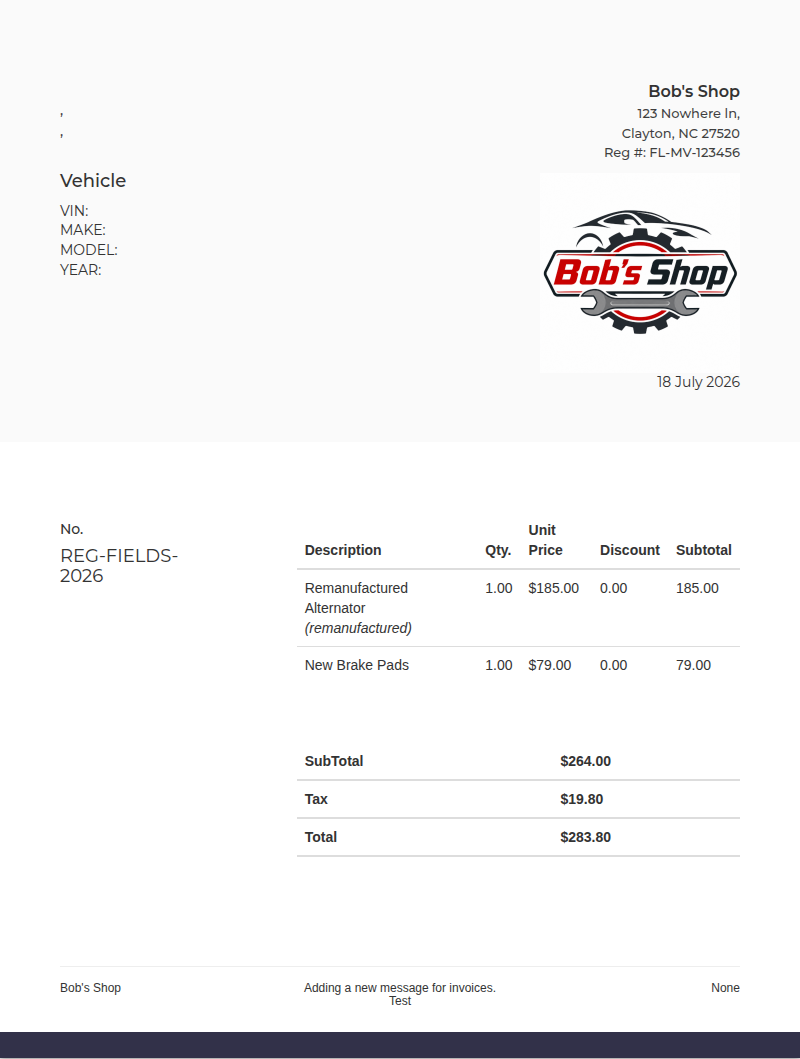
Important: Parts-condition terminology and disclosure requirements can vary by state. Your shop is responsible for selecting the accurate condition and following applicable requirements.
Also see How to Add Your Shop Registration Number and How To Print a Work Order or An Invoice.