
Use saved products to add recurring shop-supplies and waste-disposal charges without retyping their descriptions on every work order. Create a separate saved item for each charge your shop uses, then add it only when applicable.
Before You Begin
- Confirm the wording, fee rules, and tax treatment that apply to your shop. For Florida wording and applicability, see Florida: Shop Supplies and Waste Disposal Disclosures.
- There is no separate product-name field. Put the charge label and any required disclosure together in Product Description.
- Use plain text. Keep the full description, including its label, within 512 characters.
Screenshot examples: These images use a synthetic shop and Florida disclosure wording. Amounts and tax settings are demonstration values, not recommended fees or tax treatment. Use the wording required for your location.
Create the Saved Charges
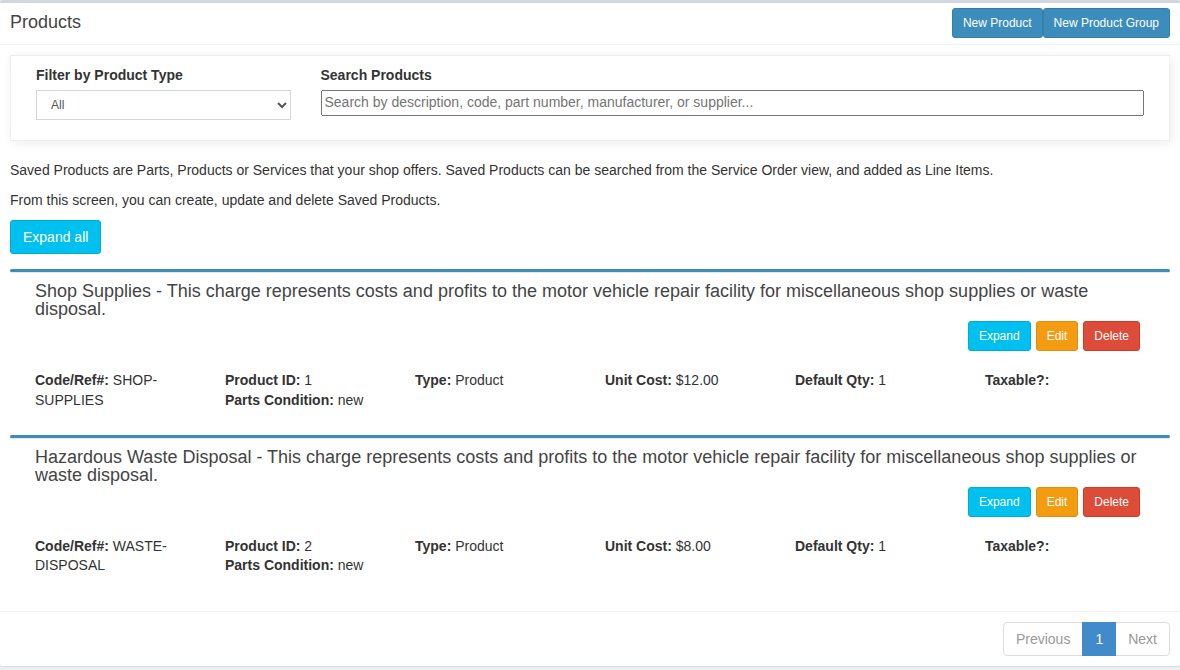
- Open Products in the left menu and select New Product, not New Product Group.
- In Product Description, enter Shop Supplies, followed by a separator such as a dash and the disclosure required for your location. Keep the disclosure sentence intact. Florida shops can copy the sentence from the Florida disclosure guide.
- Review Unit Cost, Product Type, Taxable, and Default Qty. Set them for the charge you intend to make. For a single charge, use a default quantity of 1.
- If Auto Add is available, leave it off for this workflow. It adds an item to all new service orders; it does not decide whether a charge is appropriate for a particular repair or state.
- Select Save.
- Repeat for Hazardous Waste Disposal if your shop charges that fee. Include the applicable disclosure in this item’s description as well.
Check the final charge: Unit Cost is not necessarily the final customer price. Product-type items can receive the work order’s parts markup. Quantity, discounts, and taxes can also affect the amount. Do not assume the default Taxable setting is correct for your fee.
Add a Saved Charge to a Work Order
- Open Work Orders, find the order, and select View.
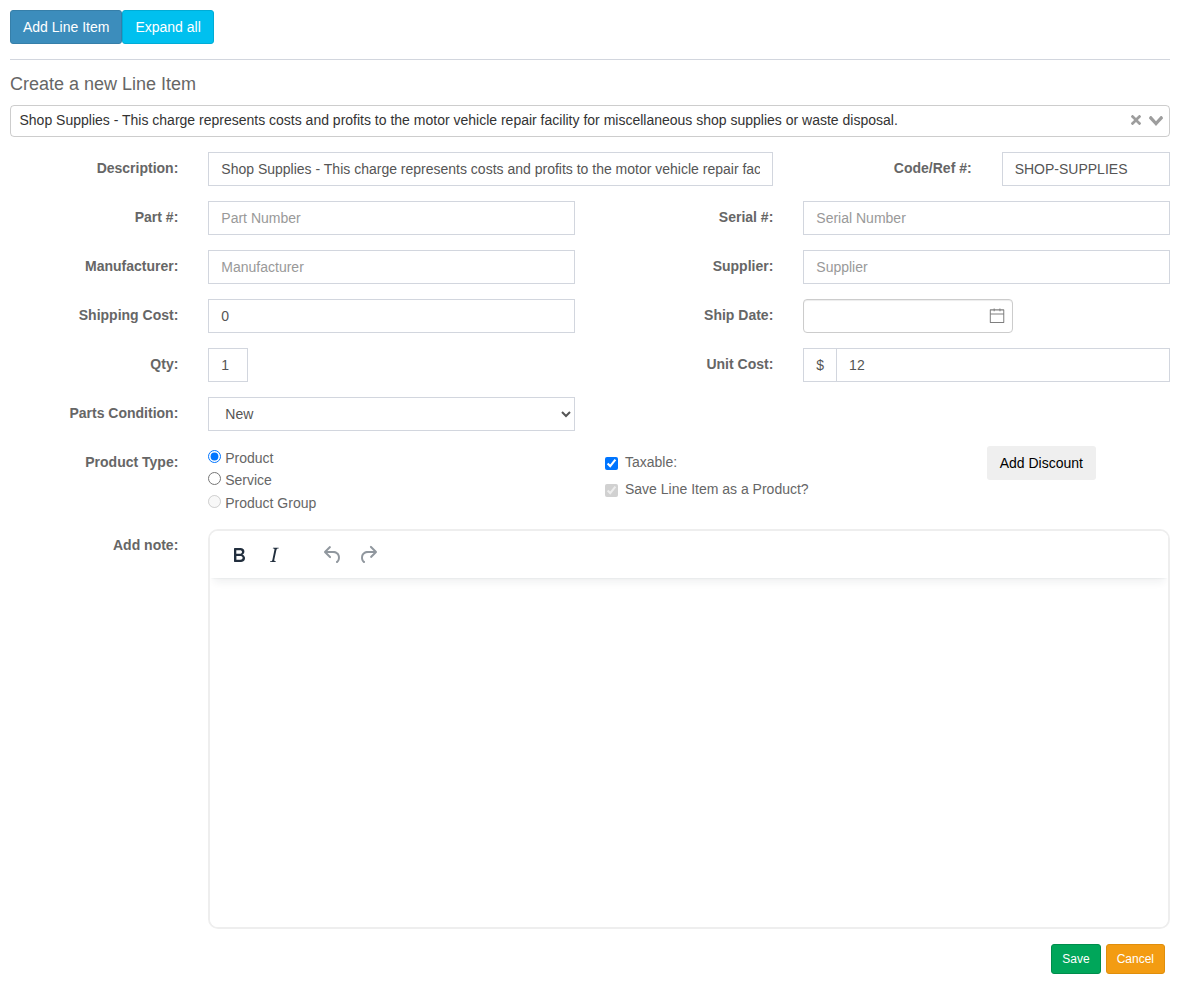
- In Line Items, select Add Line Item.
- Use the search field labeled Replace line item: Search by Item Description…. This wording also appears when adding a new line. Search for Shop Supplies or Hazardous Waste Disposal and select the saved item.
- Check that Description contains both the charge label and the complete disclosure. Review Qty, Unit Cost, Product Type, and Taxable.
- Select Save. Selecting a search result alone does not save the line.
- Repeat for any other applicable charge, then check the order totals and final amounts.
Use the line’s Description for the disclosure, not Add note. Notes are separate and can have their own print-visibility settings.
Check the Estimate and Invoice
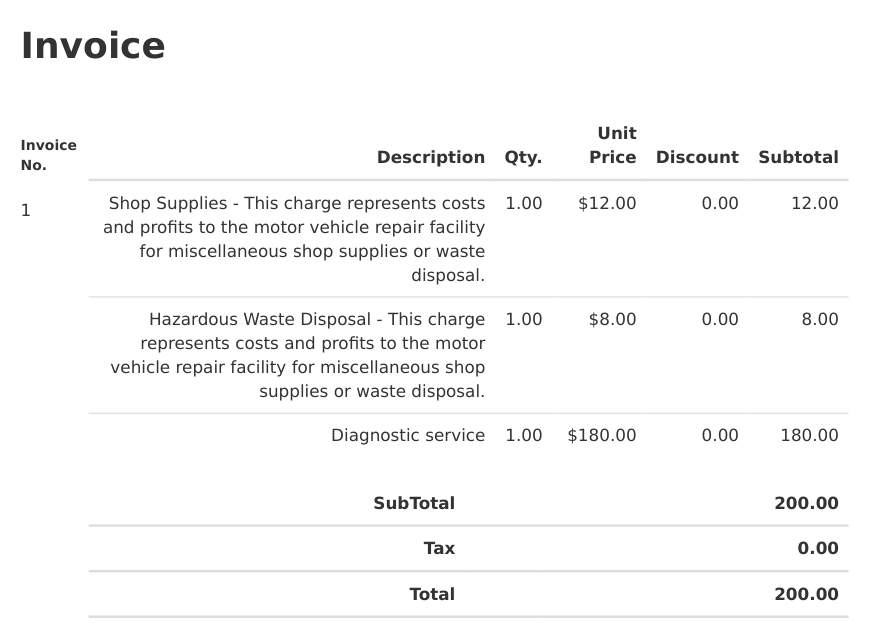
- From Actions, select Preview Estimate or Preview Invoice. Depending on your account’s printing features, the buttons may instead say Print Estimate and Print Invoice.
- Check that each applicable charge shows its full description and the intended amount. Make sure the disclosure is readable and is not cut off at a page break.
- If using a PDF, open the generated PDF and check it too. For a customer link, open the actual link you intend to share and confirm the current description is present.
- Correct any missing or incomplete text before providing the document to the customer. Where the disclosure is required on the estimate, do not wait until invoicing to include it.
Product descriptions are used in the application’s print, PDF, and customer-link templates. Always review the actual output you use; account features and published versions can affect which document is opened.
Change a Description Later
Editing a saved product changes the source used for future additions. It does not rewrite descriptions already copied onto existing work orders.
- To correct an existing work order, select Edit on the affected line, update Description, and select Save.
- Open the estimate or invoice again through its Preview or Print action and verify the result.
- For accounts using published versions, Preview publishes or reuses a version rather than being only a local visual check. An earlier published version keeps its saved line descriptions; do not assume an old browser tab or previously shared link has updated. Check the version and link you will provide to the customer.
Related Documentation
- Florida: Shop Supplies and Waste Disposal Disclosures
- How To Print a Work Order or An Invoice
- How to Publish an Estimate and Collect Customer Approval
- Compliance guides
Important: HibbittsAutoPro displays the information you enter; it does not determine which charges, disclosures, or tax settings are legally appropriate for your shop.